What are Windows Thumb.db files?
Windows creates a file called Thumbs.db for folders that contain pictures. The Thumbs.db (.DB) file caches a thumbnail version of the pictures in the folder, making it quicker to view the thumbnail images each time the folder is opened.
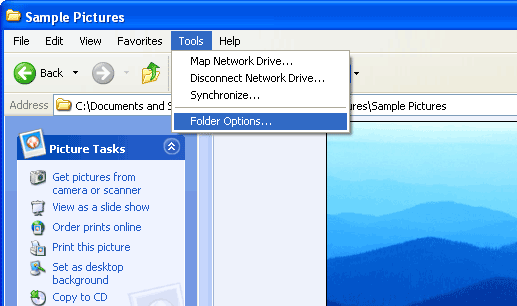
The Thumbs.db file is often viewable when the "Show Hidden Files" option is turned on in Windows. To activate this setting, first open a folder in Windows. Then choose .
Click the "View" tab of the Folder Options window and check the option that says "Show hidden files and folders" as shown below.
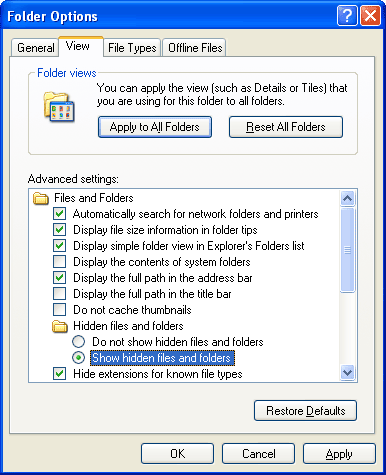
Click in the lower-right corner of the window to apply the changes to the current folder. If you want to show hidden files in all folders, click the button near the top of the window. Then click to close the window.
How to Remove the Thumbs.db File
You can delete the Thumbs.db file by simply dragging it to the Recycle Bin. However, the file will be regenerated each time you open the folder, which means deleting the file has little effect. To prevent the Thumbs.db file from being created, follow these instructions:
- Open a folder (or the specific folder you want to change).
- Select from the menu.
- Click the View tab.
- Check the "Do not cache thumbnails" option (see below).
- Click to apply the change and close the window (or click to make the change systemwide).
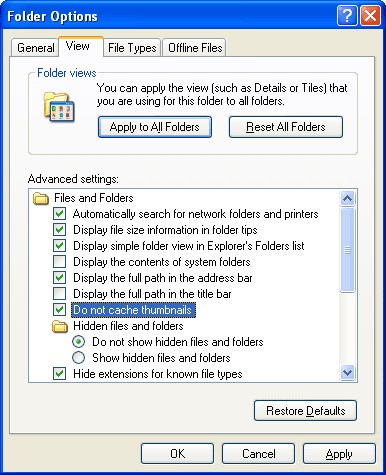
If you change your mind regarding either of the above settings, you can revert back to Windows' default settings by clicking the option.
NOTE: Windows Folder Options can also be accessed from the Control Panel, but any changes made within the Control Panel options will have a systemwide effect.